# AWS Lambda Using Terraform
Terraform allows infrastructure to be expressed as code, in a language called **HCL** (**_HashiCorp Configuration Language_**). Terraform registry contains various Terraform providers and modules for quickly deploying the common infrastructure configurations.
Providers are the plugins that will implement the resource types. We can find many different cloud providers which include major cloud providers like AWS, Azure, GCP.
Modules are the small, reusable Terraform configurations that let us manage a group of related resources as a single resource.
In this blog post, we will use **_aws_** provider and the module **_terraform-aws-modules/lambda/aws_** to create lambda and lambda layers.
## 10000 Feet Overview
Basically there are three steps to deliver the infrastructure as Code.
- Write the infrastructure as code in configuration files using HashiCorp Configuration Language, then run the command `terraform init` to initialize the terraform.
- Before provisioning the infrastructure, check if a plan matches the expectation using a command `terraform plan`
- Once the plan is verified, apply the changes to get the desired infrastructure components using the command `terraform apply`
## Project Structure
- Create a new directory and move to the directory
```sh
mkdir terraform-provider-module && cd terraform-provider-module
```
- Create a **_resource_** folder to store the code for lambda and lambda-layer
```sh
mkdir resources
```
## Create a Lambda layer
Create a folder **_profile-generator-layer_** in the resources folder
```sh
mkdir profile-generator-layer
```
- Lambda layer expects the layer in the folder **_nodejs_**. So let's create a folder and add **_package.json_** and then run the npm install.
```sh
mkdir nodejs && cd nodejs
touch package.json
npm install aws-sdk faker
```
- We are using **faker** npm module to generate a fake profiles.
## Create a Lambda
Create a folder **_profile-generator-lambda_** in the resources folder and add the **_index.js_** file with the below content.
```sh
mkdir profile-generator-lambda && cd profile-generator-lambda
touch index.js
```
```javascript
const faker = require("faker/locale/en_IND");
exports.handler = async (event, context) => {
let firstName = faker.name.firstName();
let lastName = faker.name.lastName();
let phoneNumber = faker.phone.phoneNumber();
let vehicleType = faker.vehicle.vehicle();
let response = {
firstName: firstName,
lastName: lastName,
phoneNumber: phoneNumber,
vehicleType: vehicleType,
};
return {
statusCode: 200,
headers: {
"Content-Type": "application/json",
},
body: JSON.stringify({
profile: response,
}),
};
};
```
## Terraform Providers
Now, we will write the terraform scripts in **_HCL_** language where we will utilize the AWS provider. Create a **_main.tf_** file in the root directory of the project and add the below content.
```sh
touch main.tf
```
```json
terraform {
required_providers {
aws = {
source = "hashicorp/aws"
version = "3.50.0"
}
}
}
provider "aws" {
# Configuration options
region = var.region
profile = var.aws_profile
shared_credentials_file = var.shared_credentials_file
default_tags {
tags = var.tags
}
}
```
- Each Terraform module must declare which providers it requires so that Terraform can install and use them. Provider requirements are declared in a **_required_providers_** block.
- AWS providers require configurations like cloud regions, profiles, credential_files to be available before they can be used.
- All the values will be provided from the variables parameters.
Let's create a **_variables.tf_** in the root directory of the project and add the below content.
```sh
touch variables.tf
```
```json
variable "region" {
description = "Deployment Region"
default = "ap-south-1"
}
variable "aws_profile" {
description = "Given name in the credential file"
type = string
default = "rahul-admin"
}
variable "shared_credentials_file" {
description = "Profile file with credentials to the AWS account"
type = string
default = "~/.aws/credentials"
}
variable "tags" {
description = "A map of tags to add to all resources."
type = map(string)
default = {
application = "Learning-Tutor"
env = "Test"
}
}
```
Each input variable accepted by a module must be declared using a **_variable_** block. The label after the **_variable_** keyword is a name for the variable, which must be unique among all variables in the same module.
- A **_default_** value makes the variable optional.
- A **_Type_** indicates what value types are accepted for the variable.
- A **_description_** specifies the input variable's documentation.
## Terraform Modules
Now, we will use the module **_terraform-aws-modules/lambda/aws_** to create lambda and lambda layer infrastructure.
Create the files lambda.tf and lambda_layer.tf in the root directory of the project and add the below content.
```sh
touch lambda.tf lambda_layer.tf
```
### lambda.tf
```json
module "profile_generator_lambda" {
source = "terraform-aws-modules/lambda/aws"
version = "2.7.0"
# insert the 28 required variables here
function_name = "profile-generator-lambda"
description = "Generates a new profiles"
handler = "index.handler"
runtime = "nodejs14.x"
source_path = "${path.module}/resources/profile-generator-lambda"
layers = [module.profile_generator_lambda_layer.lambda_layer_arn]
tags = {
Name = "profile-generator-lambda"
}
}
```
### lambda_layer.tf
```json
module "profile_generator_lambda_layer" {
source = "terraform-aws-modules/lambda/aws"
create_layer = true
layer_name = "profile-generator-layer"
description = "The Faker Dependency layer"
compatible_runtimes = ["nodejs14.x", "nodejs12.x"]
source_path = "${path.module}/resources/profile-generator-layer"
}
```
- **_source_** field is used to indicate the terraform module which we intend to use.
- **_function_name_** field is the unique name for our lambda function.
- **_handler_** field is the Lambda Function entry point for our code.
- **_runtime_** field is Lambda Function runtime
- **_source_path_** field is the absolute path to a local file or directory containing our Lambda source code
- **_layer_name_** field is the name of Lambda Layer to create.
- **_layers_** field is a list of Lambda Layer Version ARNs (maximum of 5) to attach to our Lambda Function.
## Run Terraform scripts
Let us run the 3 basic commands of terraform to create the resources in AWS.
- Initialize the Terraform which will download all the providers and modules used in the configuration.
```sh
terraform init
```
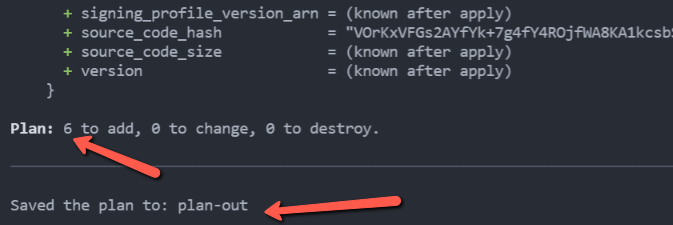
- Check if a plan matches the expectation and also store the plan in output file **_plan-out_**
```sh
terraform plan -out "plan-out"
```
- Once the plan is verified, apply the changes to get the desired infrastructure components.
```sh
terraform apply "plan-out"
```

## Verify the infrastructure on AWS
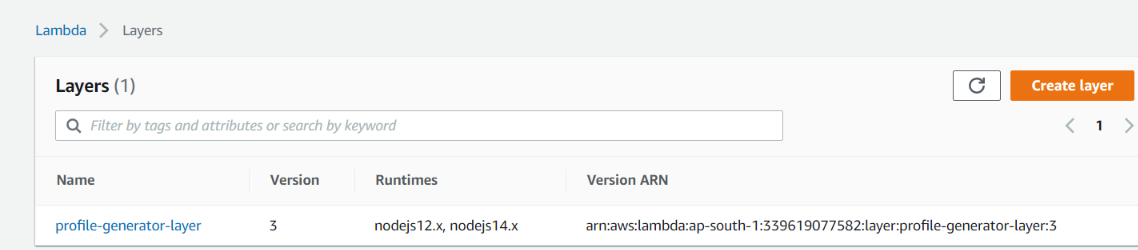
- **_Lambda Layer_**
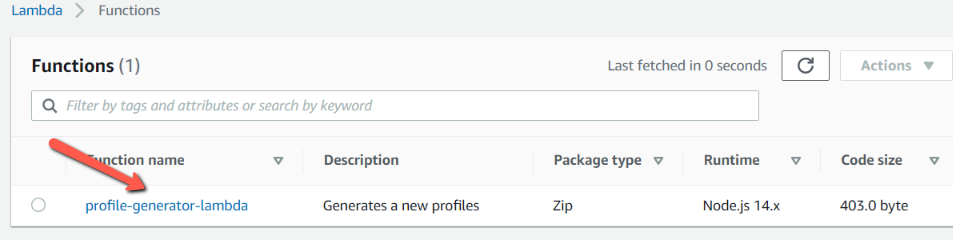
- **_Lambda Function_**
## Test the Lambda Function
As our lambda does not require any input, we can just create an empty JSON and Click on the Test button.
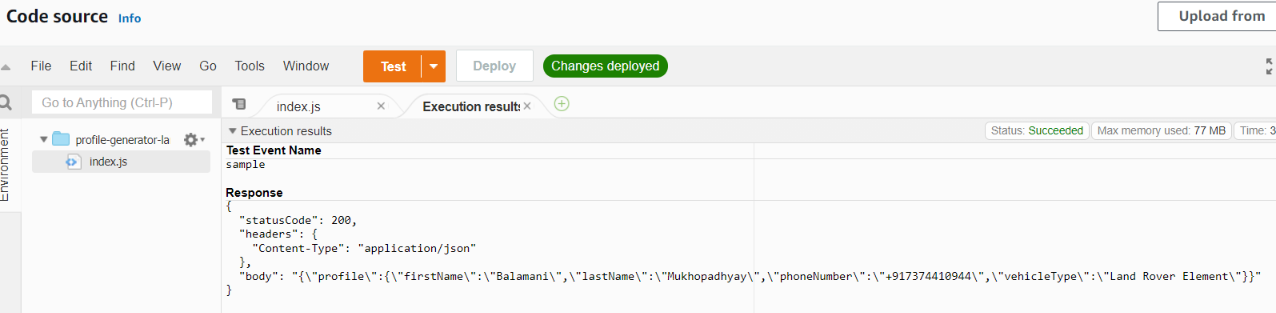
As we can see from the above screen, the lambda function returns a Body with a fake profile and a status code of 200.
## Conclusion
In this blog post, we saw how to create a lambda layer and lambda function and how to package them. We also see how to use the Terraform providers and modules. We learned how to use the terraform commands to deploy our infrastructure on AWS. The associated Git Repository is **here**